
Working the queue
You will pick work up, keep the requester informed, use the linked Jira issue for the actual doing, and finish cleanly.
For: people an administrator has given the agent role, and site administrators, who can work requests too.
Where the work lives
Fulfilra holds the request: who asked, what they answered, who approved it, the conversation with them, and the audit trail. Jira holds the work: the issue on your board, with its sprint, its estimate and its links.
They stay in step in both directions. Fulfilra creates the issue when the request is submitted; moving the issue on a Jira board moves the request's status back in Fulfilra. You can work almost entirely from your board and let Fulfilra keep the requester's view current — but comments to the requester and the resolution itself are worth doing from Fulfilra, for reasons below.
1. Open the queue
Fulfilra is in Jira's Apps menu. The Queue tab is every request on the site.
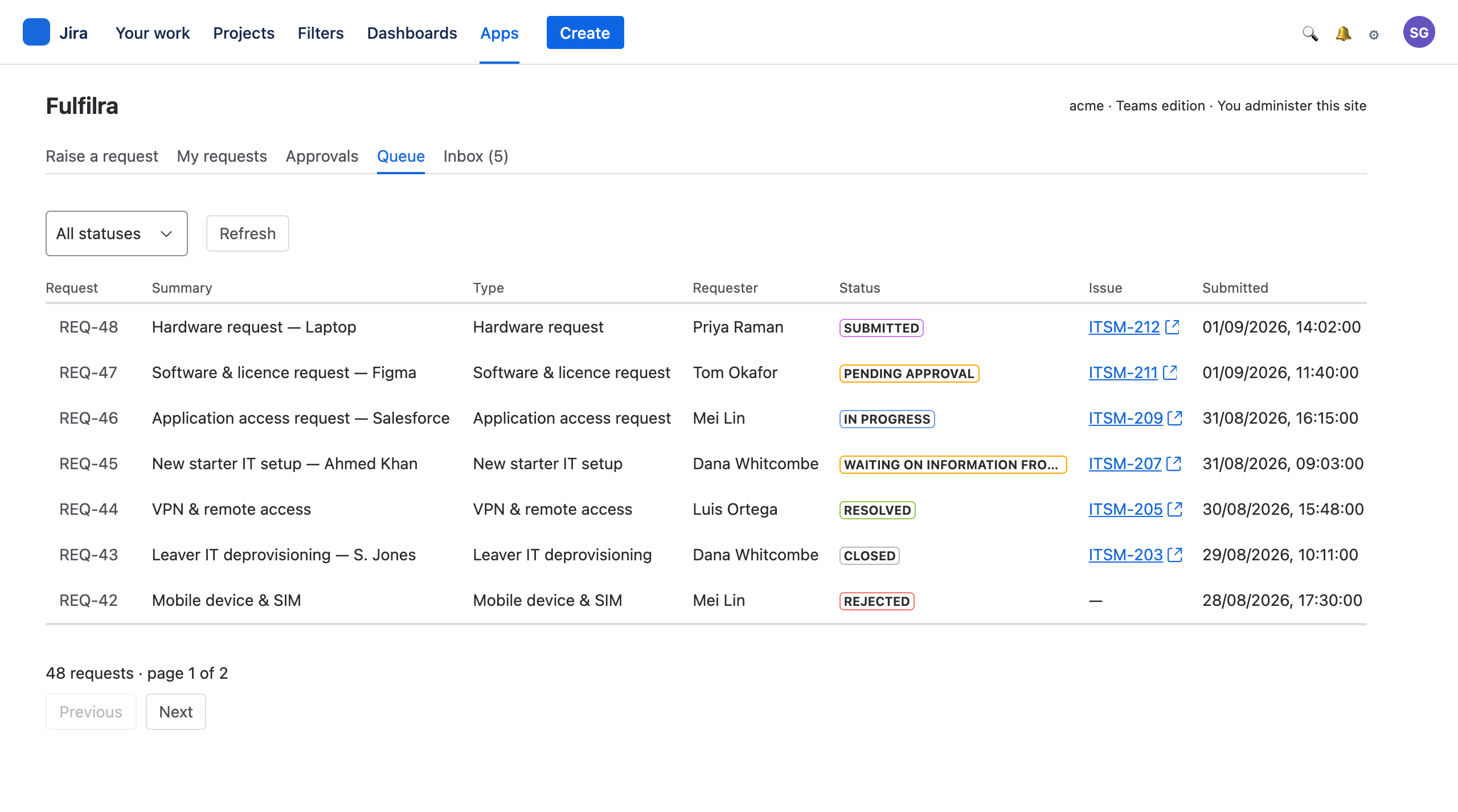
Filter by status; page through with the buttons at the foot. TheIssue column links straight to the Jira issue.
There is a second way in: the project tab. Inside any Jira project, a Fulfilra tab shows only requests whose issue lives in that project.
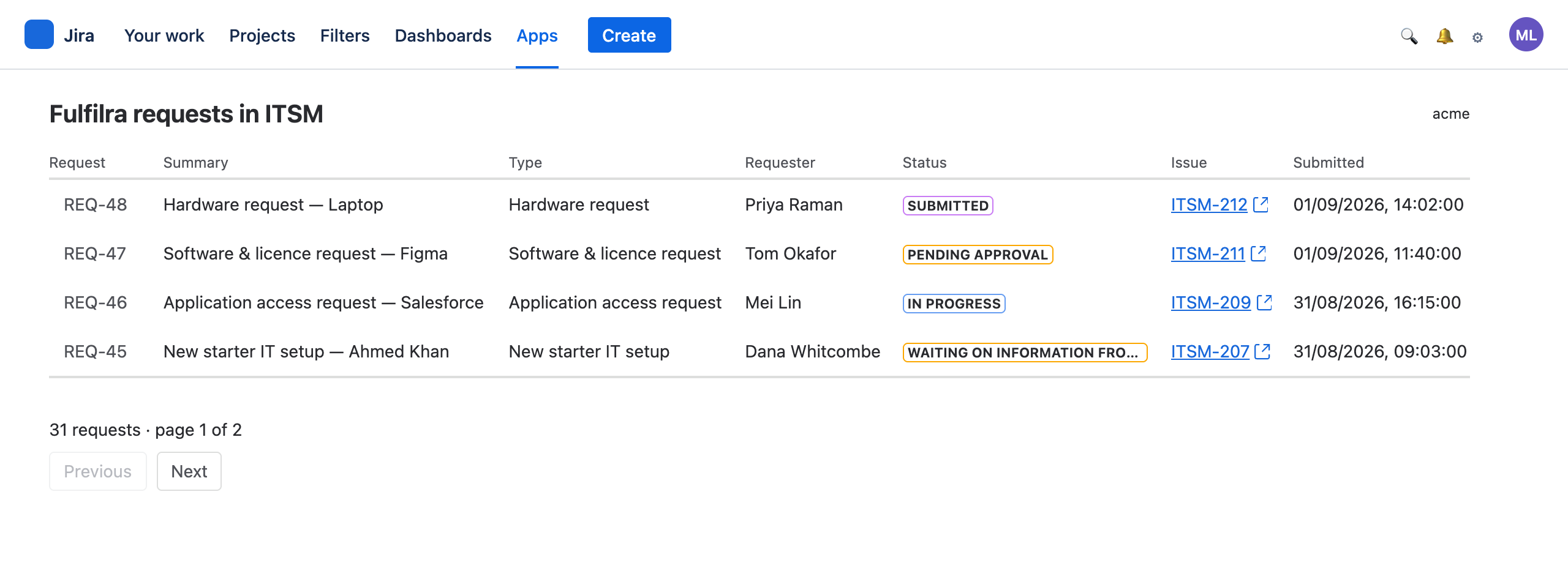
Use the project tab when you work one board, and the Queue when you cover several.
2. Pick something up
Open a request and press Start work.
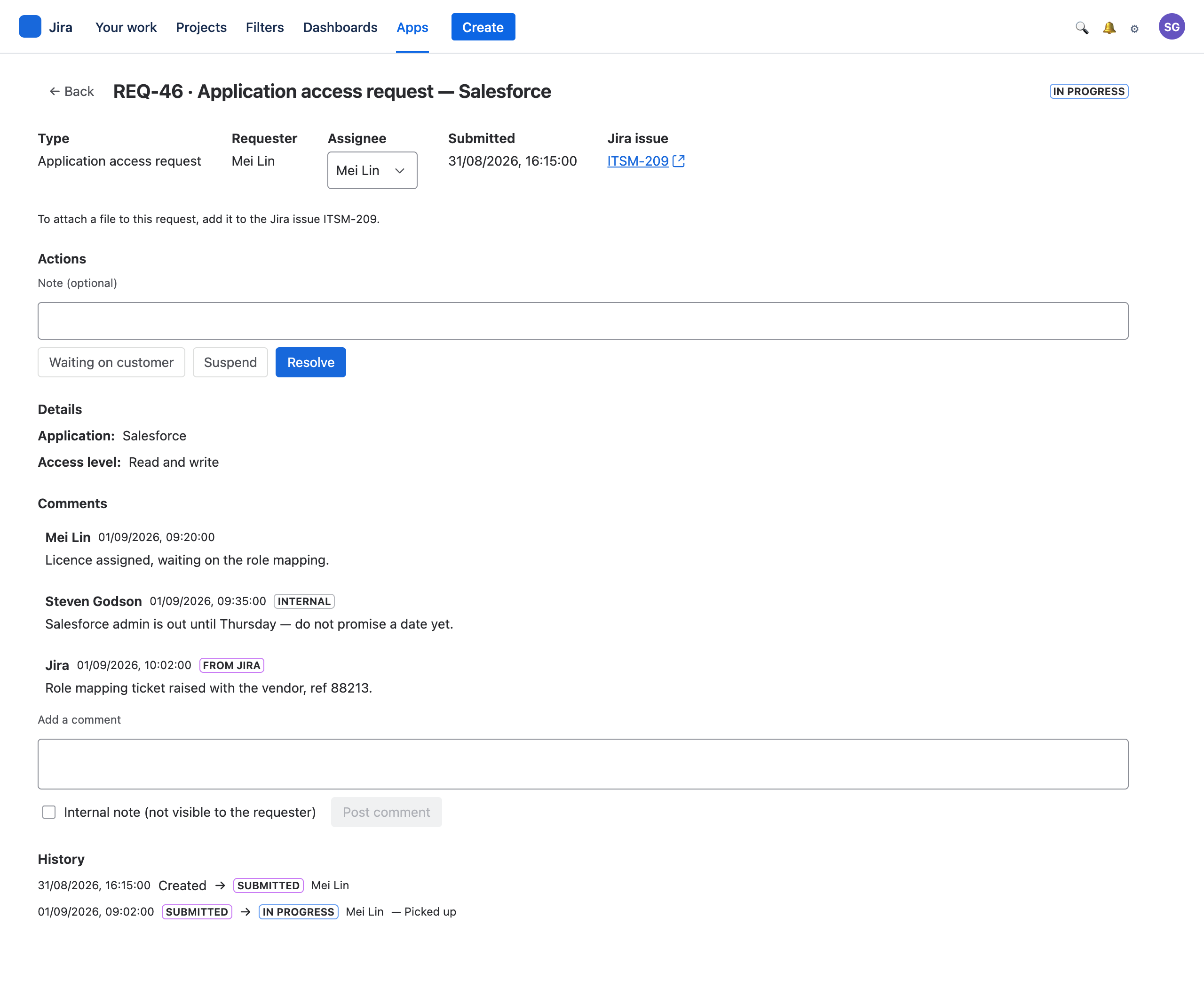
Starting work assigns the request to you if nobody has it. You can also set the assignee directly from the picker in the header — it offers the named agents, so you can hand something to a colleague.
The status becomes In progress, and the requester is told.
3. Keep the requester informed
Two kinds of comment, and the difference matters.
A public comment is a message to the requester. They are notified and they see it on their copy of the request. Use it for questions, progress and anything they need to act on.
An internal note — tick the box — is for you and your colleagues. Requesters never see internal notes and are never notified about them. Use it for the things that are true but not theirs to read: “vendor is slow, do not promise a date”, “check headcount with Finance before ordering”.
Comments made on the linked Jira issue are mirrored onto the request automatically, so a conversation on the board reaches the requester too. Only public Jira comments cross; anything marked internal in Jira stays there. Those mirrored comments deliberately send no notification — a busy issue would otherwise flood the requester — so if something on the issue genuinely needs their attention, say it as a Fulfilra comment as well.
4. Move it along
The buttons you see depend on where the request is. The useful ones:
| Button | Use it when | The requester |
|---|---|---|
| Start work | You are picking it up | is told work has started |
| Waiting on customer | You need something from them | is told, and the request stops |
| Resume work | They have replied | is not notified — nothing has changed for them |
| Suspend | Blocked on something outside your control | is not told, and does not see this state at all |
| Unsuspend | Unblocked | is not notified |
| Resolve | You believe it is done | is told, and asked to confirm |
Waiting on customer is the one to use properly. It is the status that tells everyone — including reporting — that the ball is not in your court. Leaving a request In progress while you wait on a reply makes your queue look worse than it is and hides the requester's action from them.
Suspend is internal. A suspended request does not show the requester anything unusual; the state and its reason stay in your view. Use it for “waiting on a vendor”, not for “waiting on the requester”.
5. Finish
Press Resolve and say what you did in the note. The requester is told, and they get two choices: close it, or reopen it if you have not actually solved their problem.
Requesters close their own requests. That is deliberate: a request the person who raised it has agreed is finished is a much stronger signal than one closed by the person who did the work. You can close on their behalf when they have gone quiet.
If a request comes back — reopened — it returns to In progresswith its whole history intact, including your first resolution.
Situations
No Jira issue on a request.
Either the type is configured not to create one, or creation failed at submission. If the type creates issues, the request detail offers Create the Jira issue; press it. If it does not, the request is handled entirely in Fulfilra — fine for quick things, but you get no board, no sprint and no email to the requester.
The board and the request disagree.
Fulfilra maps Jira status categories to request statuses: In Progress moves a request to In progress, Done resolves it, and To Do deliberately does nothing. Some moves are refused on purpose — Jira can never approve, reject, close or cancel a request, because those are decisions a person makes in Fulfilra. A refused sync is recorded where your administrator can see it, not silently dropped.
A request needs approval and is stuck.
Only the named approver can decide. Check who it is on the request, and chase them. If they have left the company, your administrator can change who the type names.
Somebody attached something sensitive to the issue.
Anyone who can browse the project can see it. If it should not be there, remove it in Jira and tell the requester where to send it instead.
The queue is enormous.
Filter by status. Work Waiting on information from customer separately — those are usually stale and often just need closing.
Install it, and raise a request five minutes later
Free edition, no card, no separate account. Everyone on your Jira site can raise a request the moment it is installed.