
Approving requests
You will find what is waiting on you, read enough to decide, and approve or reject with a reason.
For: people an administrator has named on an approval step. You will see an Approvals tab in Fulfilra that other people do not.
What being an approver means
Your administrator has named you, personally, on one or more request types. When somebody raises a request of that type, it stops and waits for you. Nothing moves until you decide.
Three properties of that are worth understanding before your first decision:
- You are named, not a group. The authority is yours specifically. It does not move because somebody edited a Jira group.
- Steps are sequential. A type can have up to three steps, decided in order. If you are step 2, you cannot decide until step 1 has.
- Nobody else can decide for you. Not an agent, not an administrator, and not somebody transitioning the linked issue on a Jira board. Fulfilra deliberately holds no route past an approval gate.
If a request is genuinely stuck on you — you are away, or you have moved role — an administrator can change who the type names. That is a configuration change, not an override of your decision.
1. Find what is waiting
Open Fulfilra from Jira's Apps menu, then the Approvals tab.
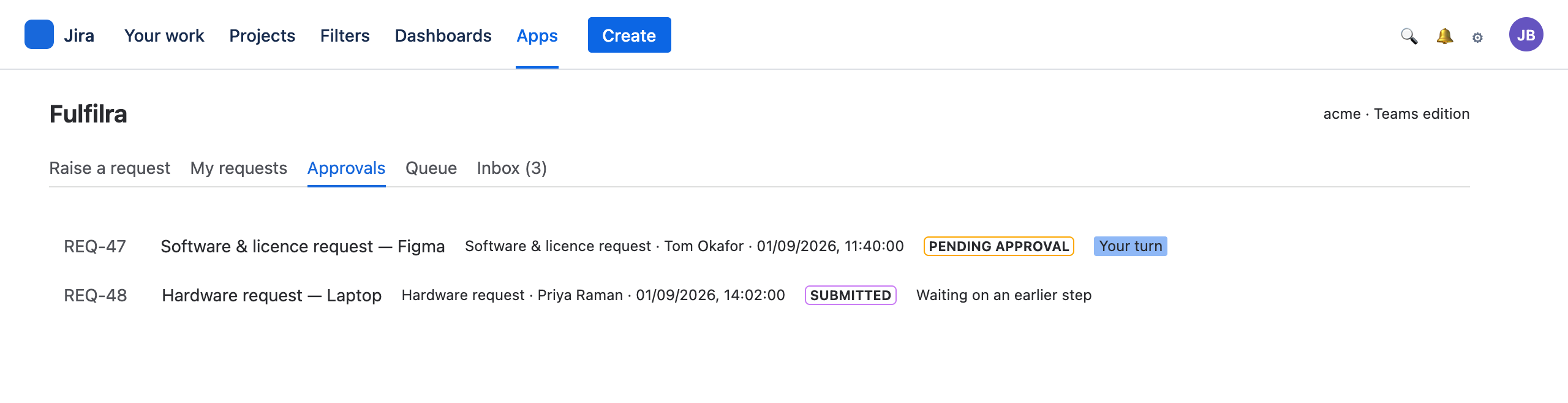
Each row is a request naming you. The marker on the right is the one to read:
- Your turn — this is the active step. You can decide it now.
- Waiting on an earlier step — you are step 2 or 3 and an earlier approver has not decided yet. It will become yours when they do. Nothing for you to do, but you can open it and read ahead.
Your Inbox tab also carries a row for each request that reaches you, with an unread count on the tab. That inbox is the only notification Fulfilra guarantees: when the request has a linked Jira issue, Jira may also email you, but when it has none, nothing is emailed at all. If you approve things, get into the habit of checking this tab. An approval nobody notices is the most expensive failure this product has.
2. Read the request
Open it from the Approvals list.
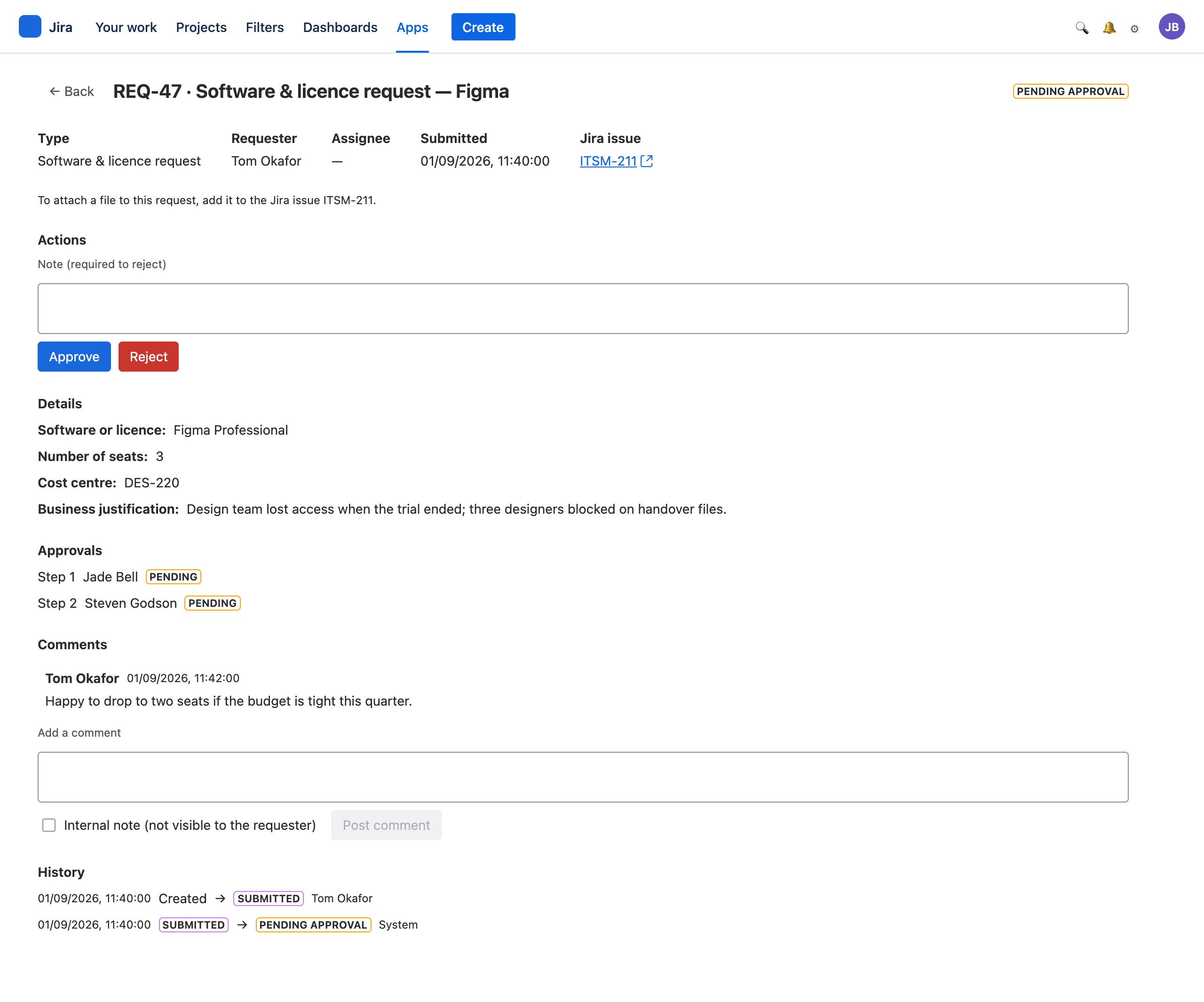
You see the whole request: every answer the requester gave, the other approval steps and who holds them, and the conversation so far. If the justification is thin, comment and ask rather than rejecting — a comment notifies the requester and keeps the request alive, where a rejection ends it.
3. Decide
The note box sits above the two buttons.
Approving. A note is optional. Use it when the yes carries a condition — “approved for two seats, not three”, “approved, comes out of the design tooling budget”. This note is not shown to the requester: it is commentary for the business and for whoever reads the request later.
Rejecting. A note is required, and this one is shown to the requester. It is the only explanation they will get, so write it for them:
- Not “denied” — say what would change the answer.
- “No budget this quarter; raise again in October with the renewal” beats “rejected”.
- If the request was simply the wrong shape, say which form they should have used.
Press Approve or Reject.
4. What happens next
You approved and there are more steps. The request stays in Pending approval and moves to the next approver, who is notified.
You approved and you were the last step. The request becomes Approved. The requester is told. An agent picks it up from there.
You rejected. The request becomes Rejected immediately — later steps are never asked. The requester is told, with your reason. Rejection is final: a rejected request cannot be revived, and a genuine change of mind means the requester raises a fresh one.
Either way the decision is recorded against your name on the request, with its timestamp, permanently.
Quick answers
I approved by mistake.
You cannot undo it. Tell the agent quickly — if work has not started they can usually hold it, and an administrator can cancel the request. Say what happened in a comment so the record is straight.
Can I approve my own request?
If a type names you as the approver and you raise it yourself, that step is approved automatically at submission and the history says so. Otherwise a request would sit waiting for its own author, forever.
I am going on leave.
There is no delegation. Ask your administrator to change the approver on the affected request types before you go, and to change it back after. Anything already waiting on you stays waiting.
A request is waiting on someone who has left.
Administrators can see this — Fulfilra reads account status from Atlassian and flags approvals naming a deactivated person. Point them at the Team tab.
Why can I see the Queue tab?
Approvers can see the full queue read-only, so you can put a request in context before deciding. It does not let you work requests; that needs the agent role — see the agent guide.
Install it, and raise a request five minutes later
Free edition, no card, no separate account. Everyone on your Jira site can raise a request the moment it is installed.